
TwinsAI for HubSpot.
AI auto-dialer for HubSpot, with hands-free data entry.
This guide walks you through connecting TwinsAI and HubSpot so you can run AI-powered outbound calling with contacts synced both ways. Pick the path that fits you: connect from inside TwinsAI, or install through HubSpot.
TwinsAI plus HubSpot, working as one.
Automated cold calling
Auto-dials contacts from your HubSpot lists with no manual dialing.
AI sales assistant
Your AI twin handles conversations, answers common questions, and engages leads from your training data.
Real-time call transcripts
Conversations are transcribed and saved back into HubSpot automatically.
Seamless human handoff
Jump into any call to take over the conversation at any time.
Lead engagement automation
Back-to-back and parallel calls keep your outreach moving.
Connect from TwinsAI settings.
Log in to TwinsAI, open Settings, and connect HubSpot in a few clicks.
Create your TwinsAI account
Sign up at app.twinsai.net, then log in to the TwinsAI app.
Open Profile, then Settings
From the TwinsAI app, go to your Profile and open Settings.
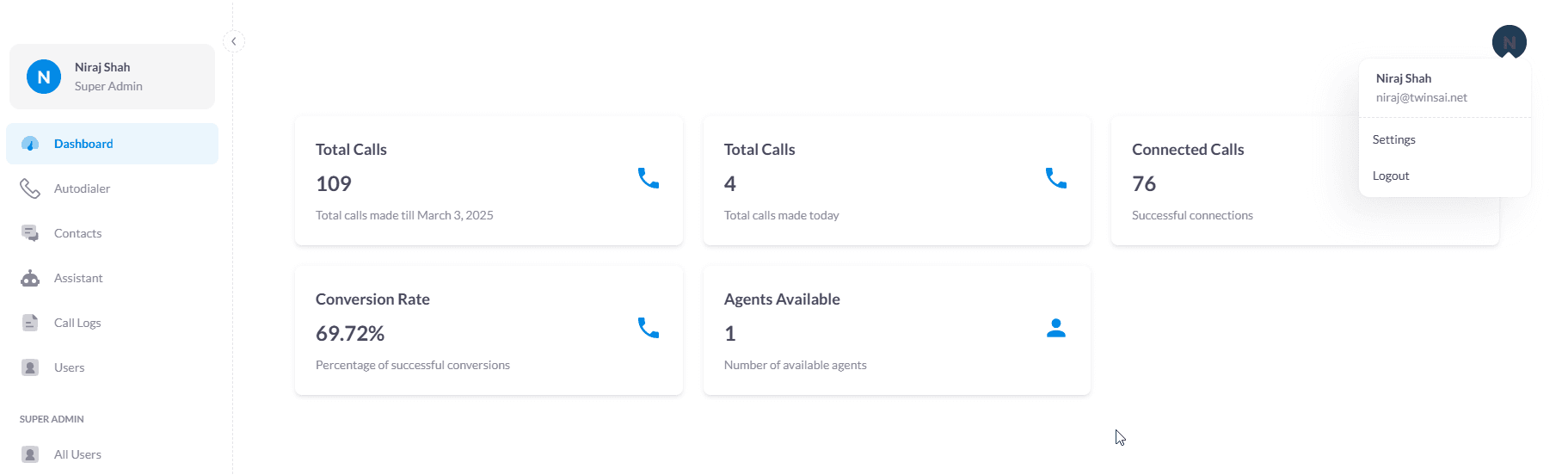
Go to the Integrations tab
Find the Integrations tab inside Settings.
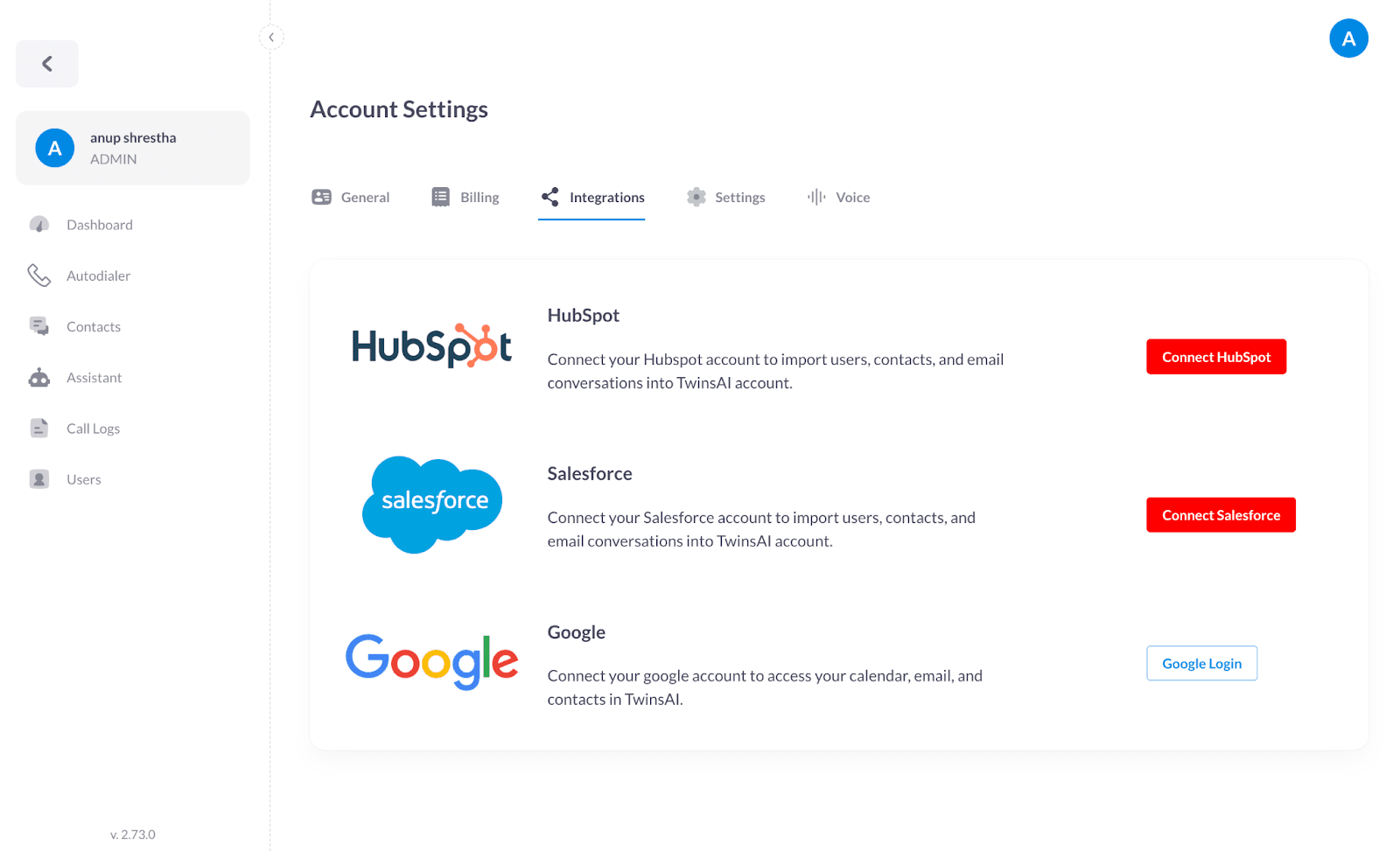
Click Connect on HubSpot
On the HubSpot Connect card, click Connect to start the secure HubSpot sign-in.
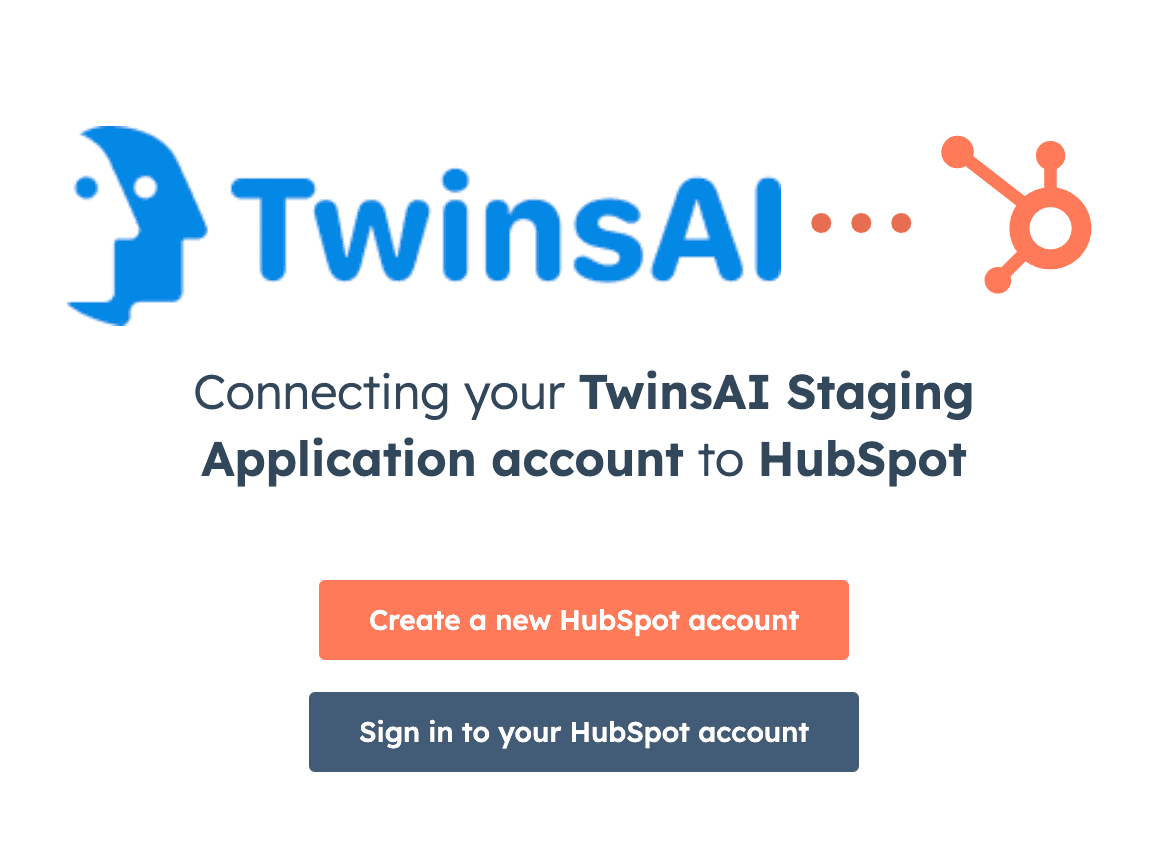
Sign in to HubSpot
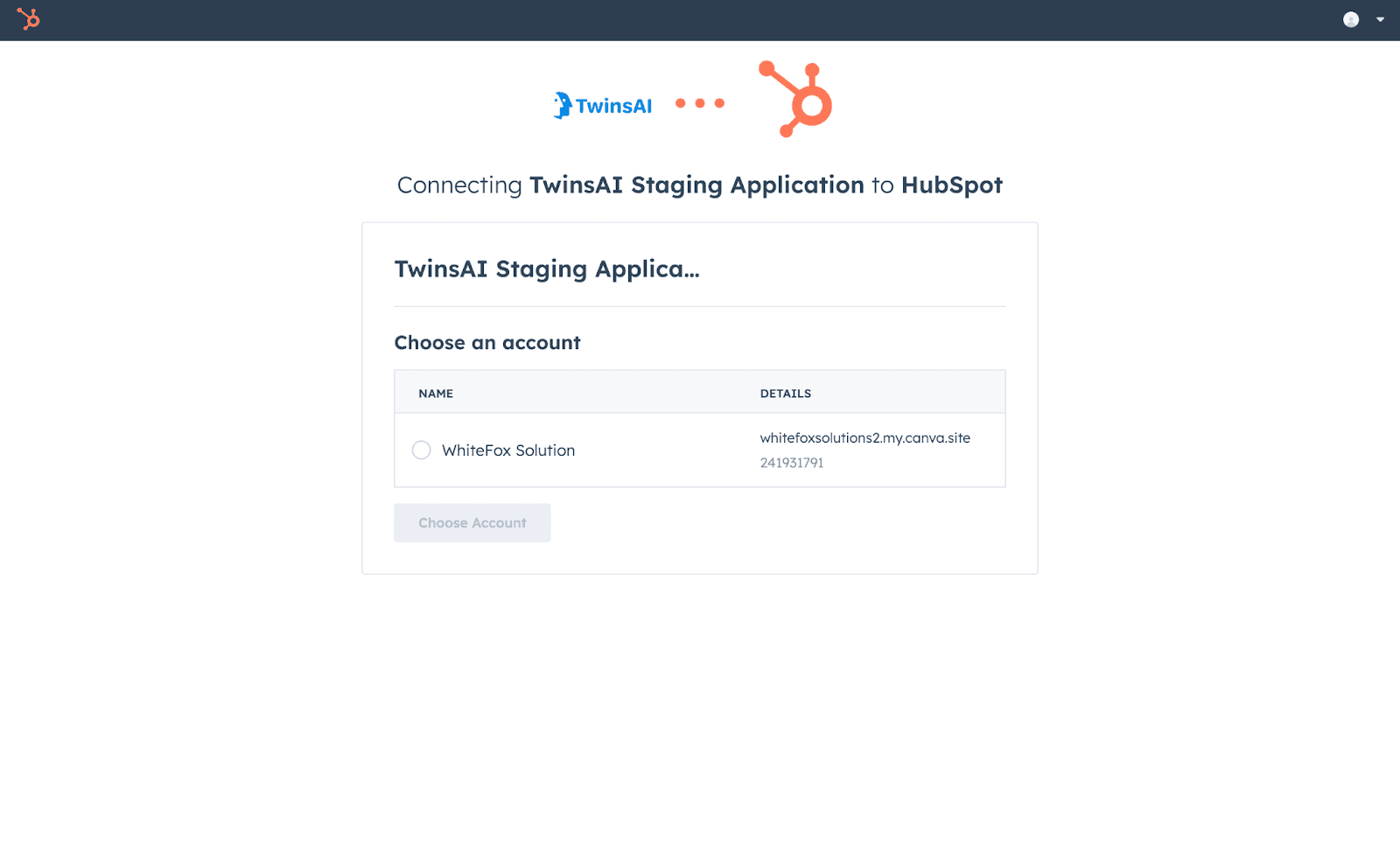
Choose your HubSpot account (or create a new one) and sign in.
Review and approve the access
TwinsAI requests permission to read and write your contacts and companies, and to read and edit contact and company properties. Approve to continue.
You are connected
That is it. HubSpot is now linked to TwinsAI and ready for the Auto-Dialer.
Install via the HubSpot Marketplace.
Prefer to start in HubSpot? Install TwinsAI from the App Marketplace and approve the same access.
Open TwinsAI in the HubSpot App Marketplace
Find the TwinsAI app in the HubSpot App Marketplace and click Install app.
Choose the account to connect
Pick the HubSpot account you want TwinsAI to work with and sign in if prompted.
Approve the same access
Review the requested access (read and write contacts and companies, read and edit properties) and click Connect app.
Back to TwinsAI, already connected
HubSpot returns you to TwinsAI with the integration live. Open the Auto-Dialer to start calling.
Using the Auto-Dialer.
Once HubSpot is connected, sync a contact list and let your AI twin do the dialing.
Open the Auto-Dialer
Open the Auto-Dialer from the hamburger menu in TwinsAI.
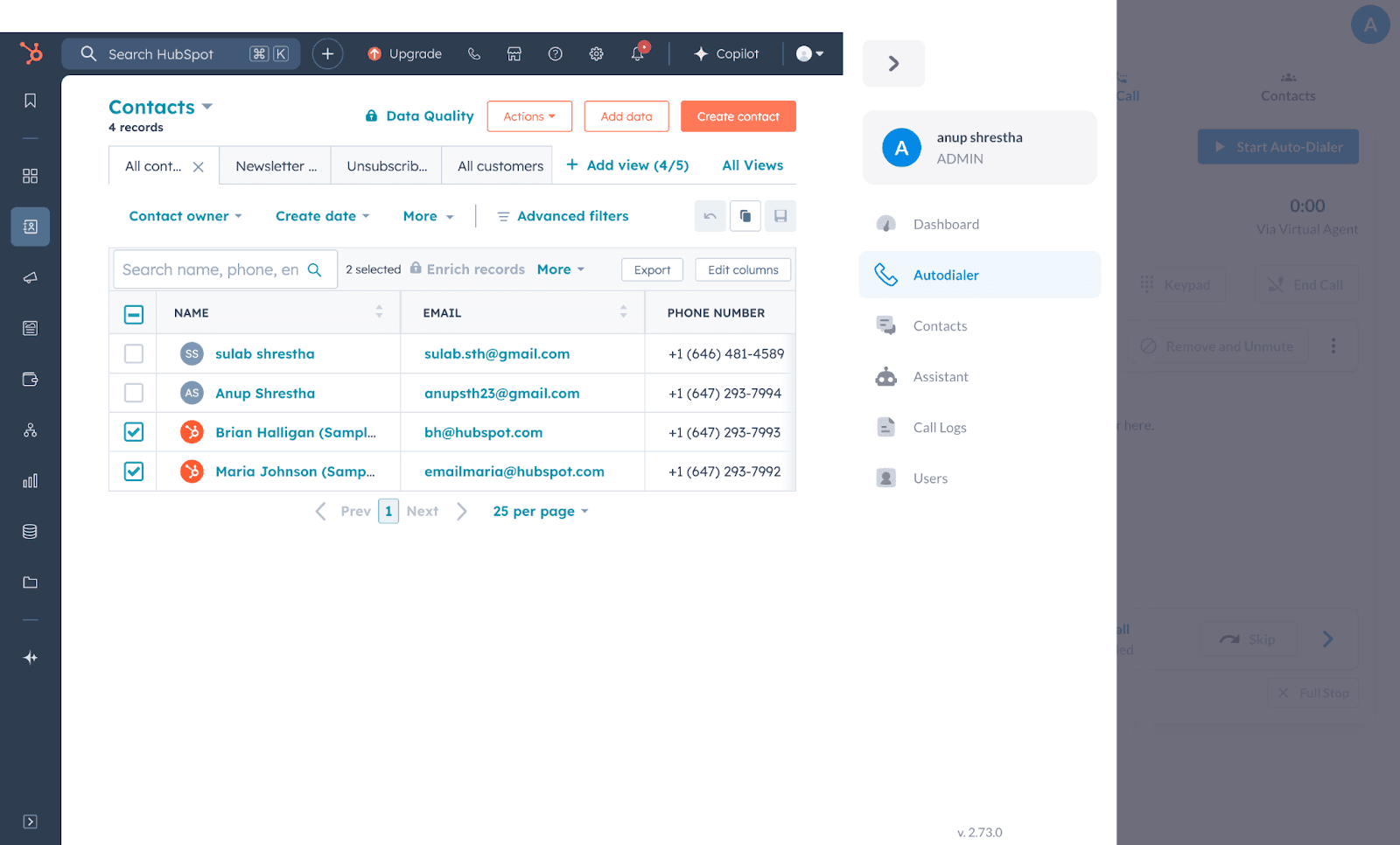
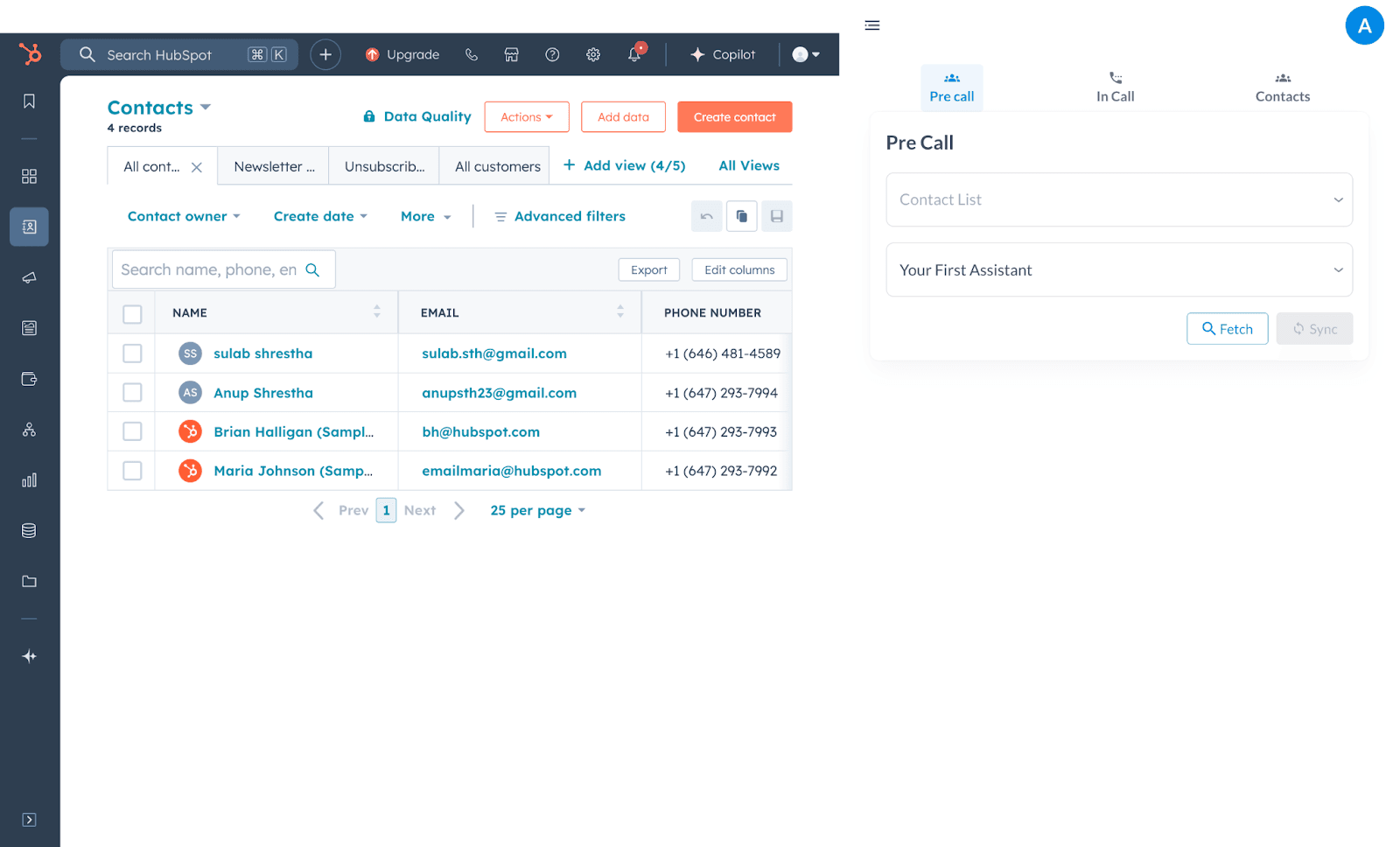
Find the three tabs
At the top you will see Pre Call, In Call and Contacts. Start on Pre Call.
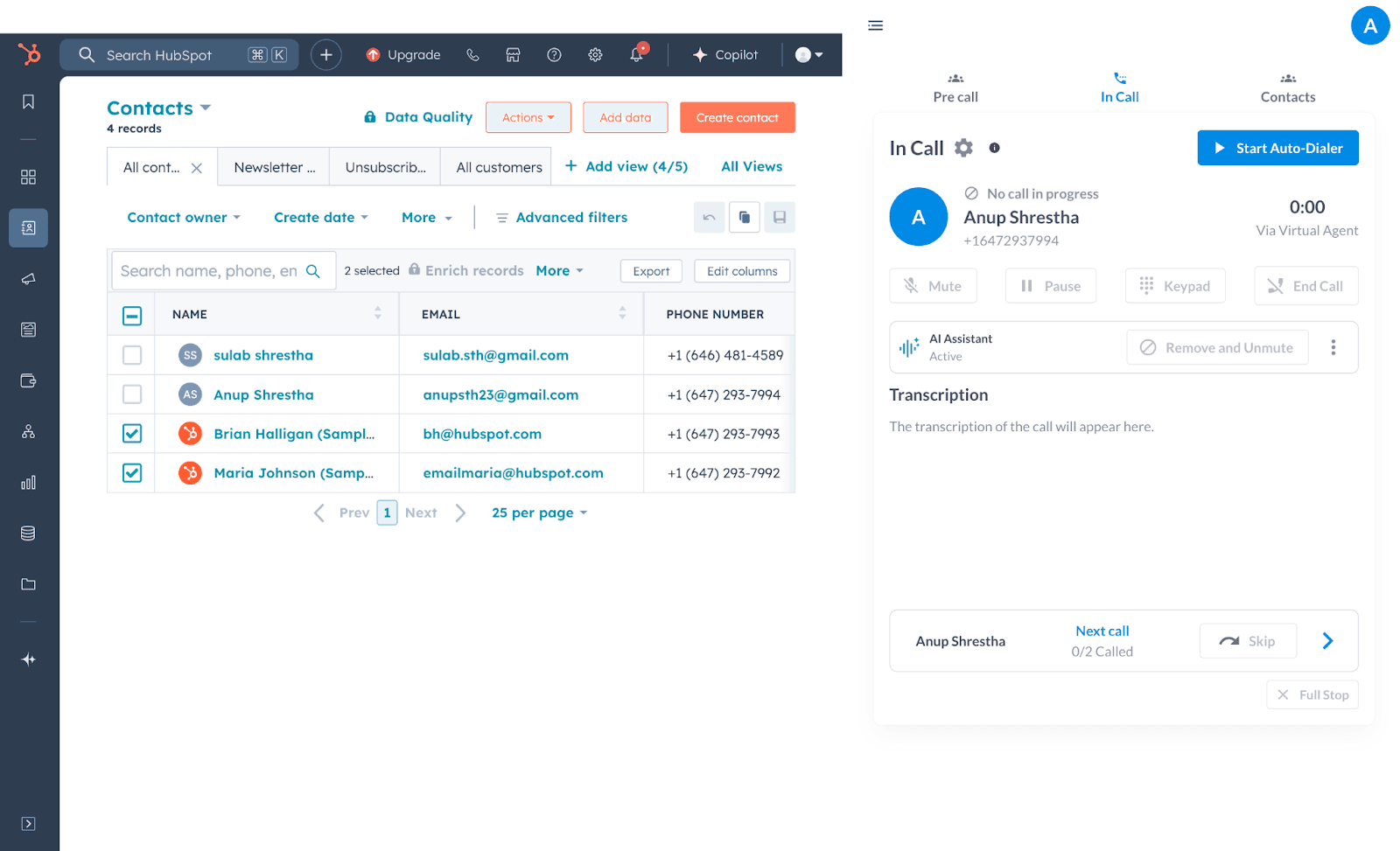
Sign in to HubSpot if prompted
If the Auto-Dialer asks, click the arrow at the top left and sign in with your HubSpot credentials.
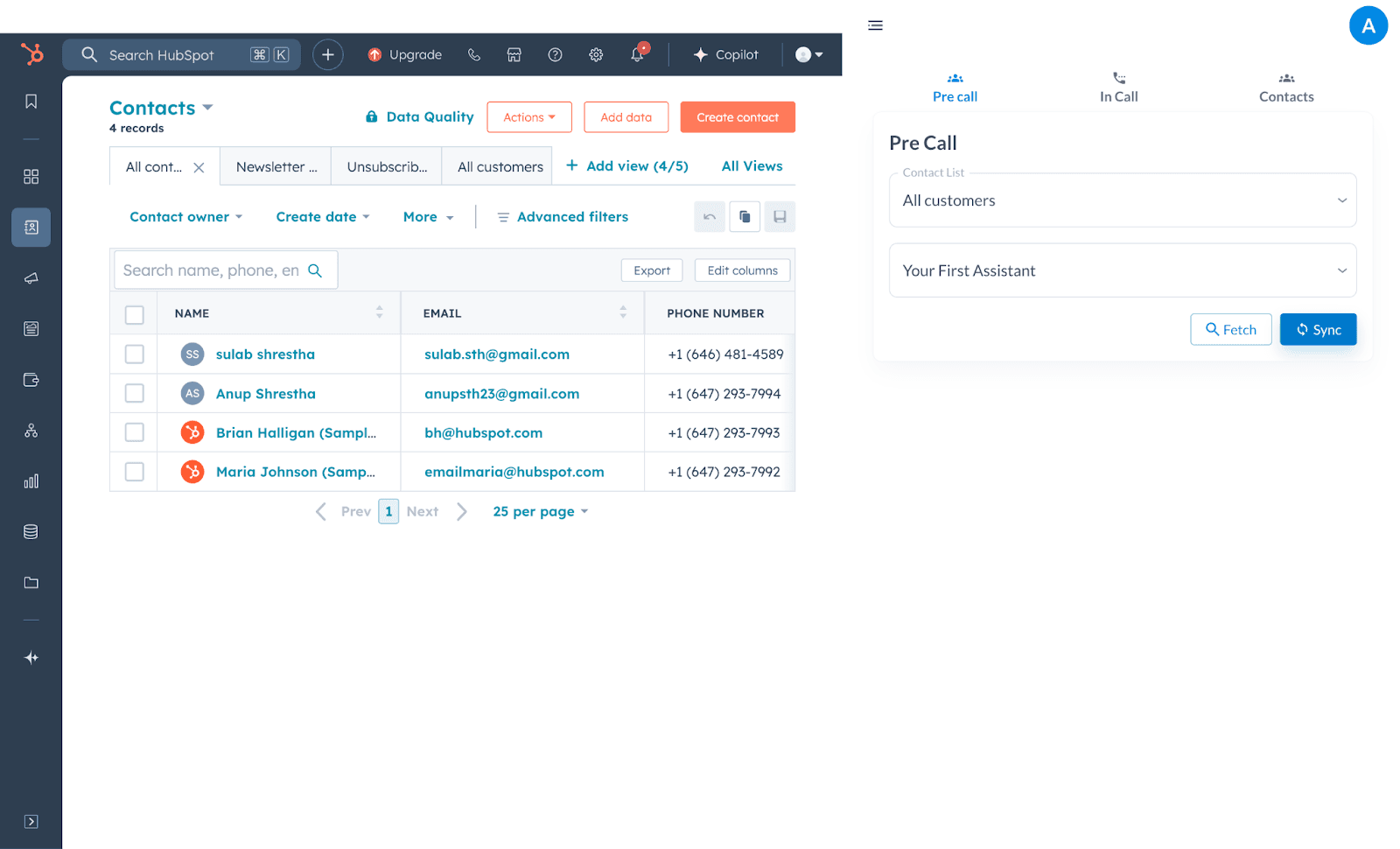
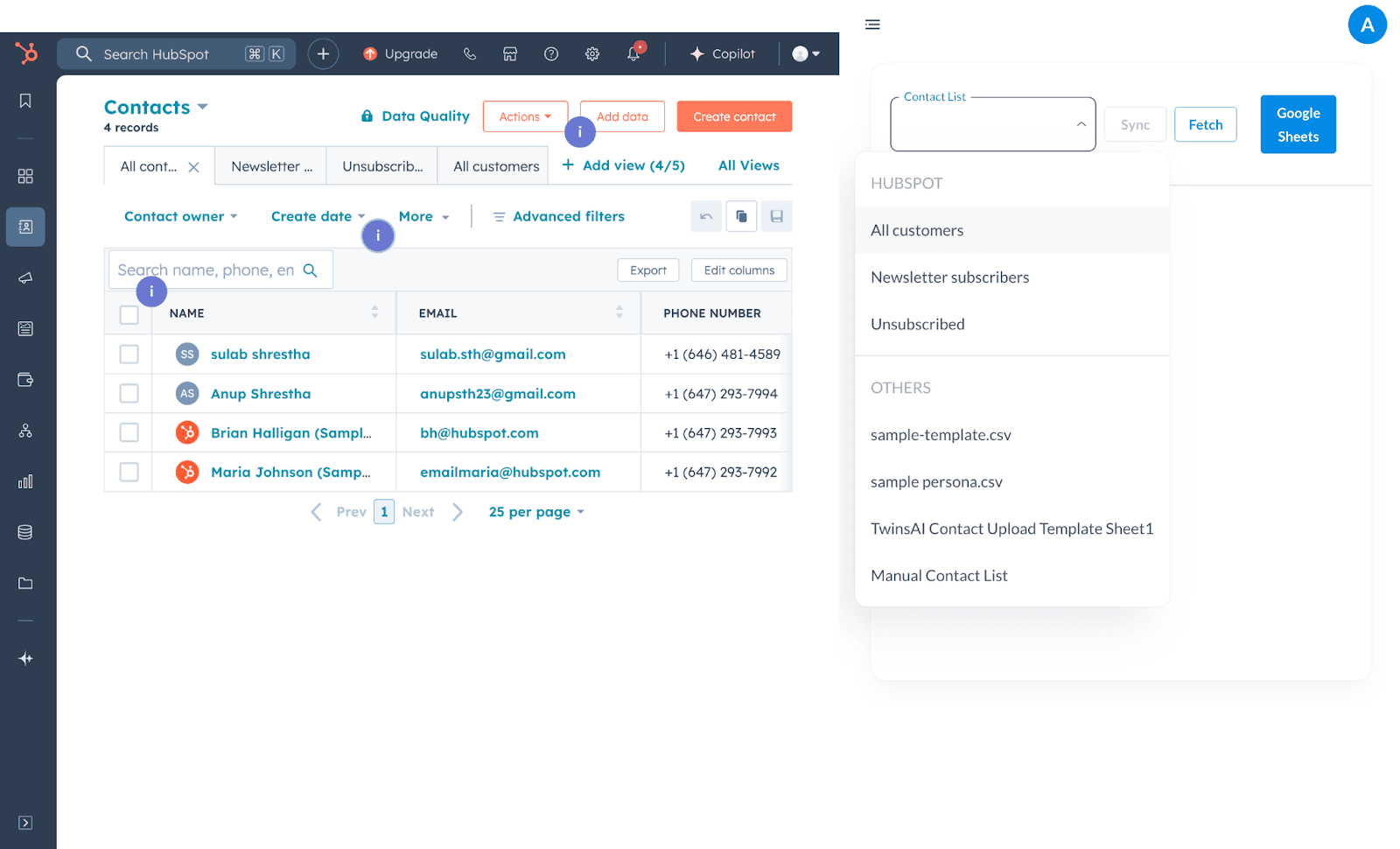
Sync a HubSpot contact list
On Pre Call, click Contact List, open HubSpot then All Customers, and press Sync. A green banner confirms HubSpot contacts list connected successfully.
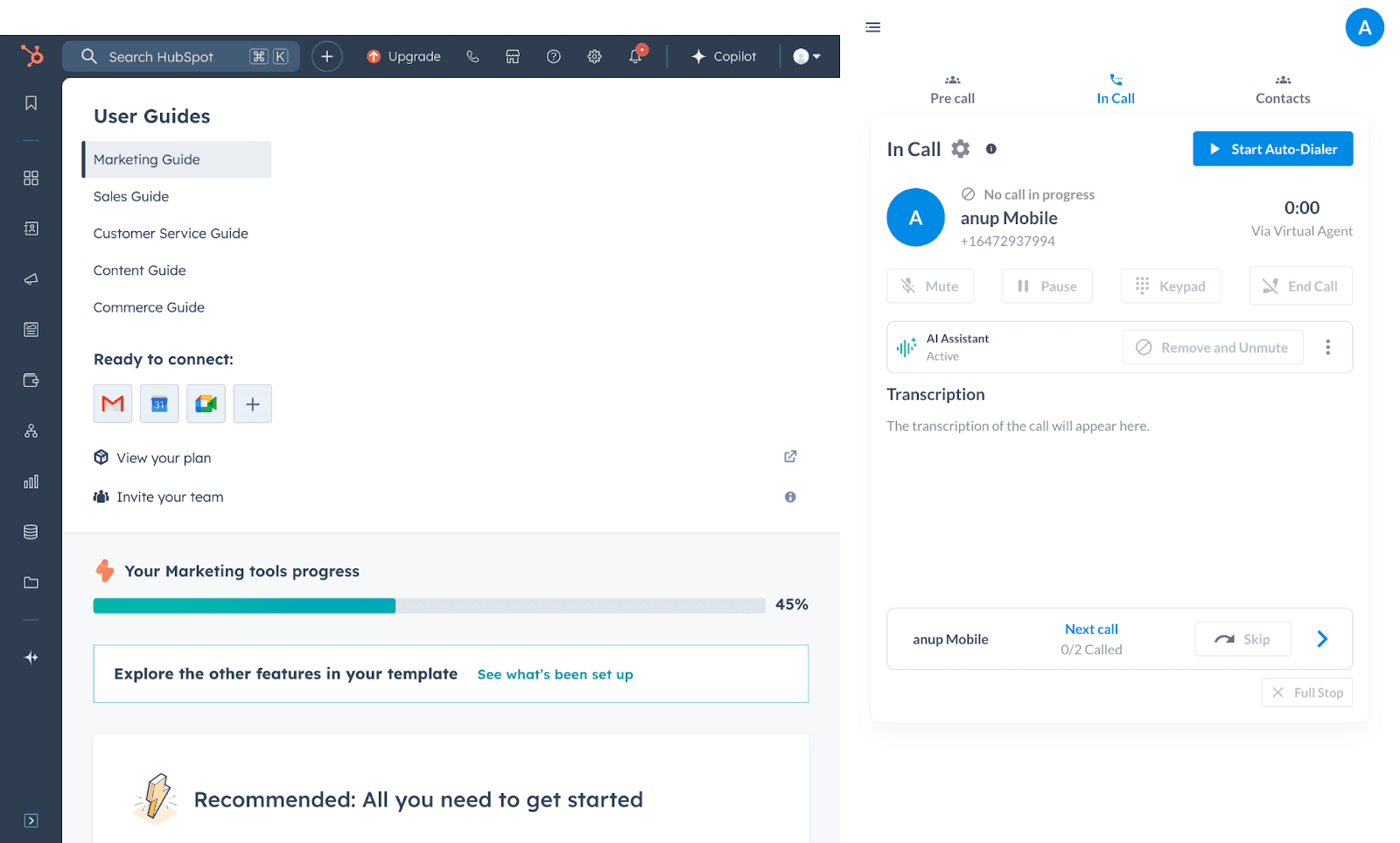
Start the Auto-Dialer
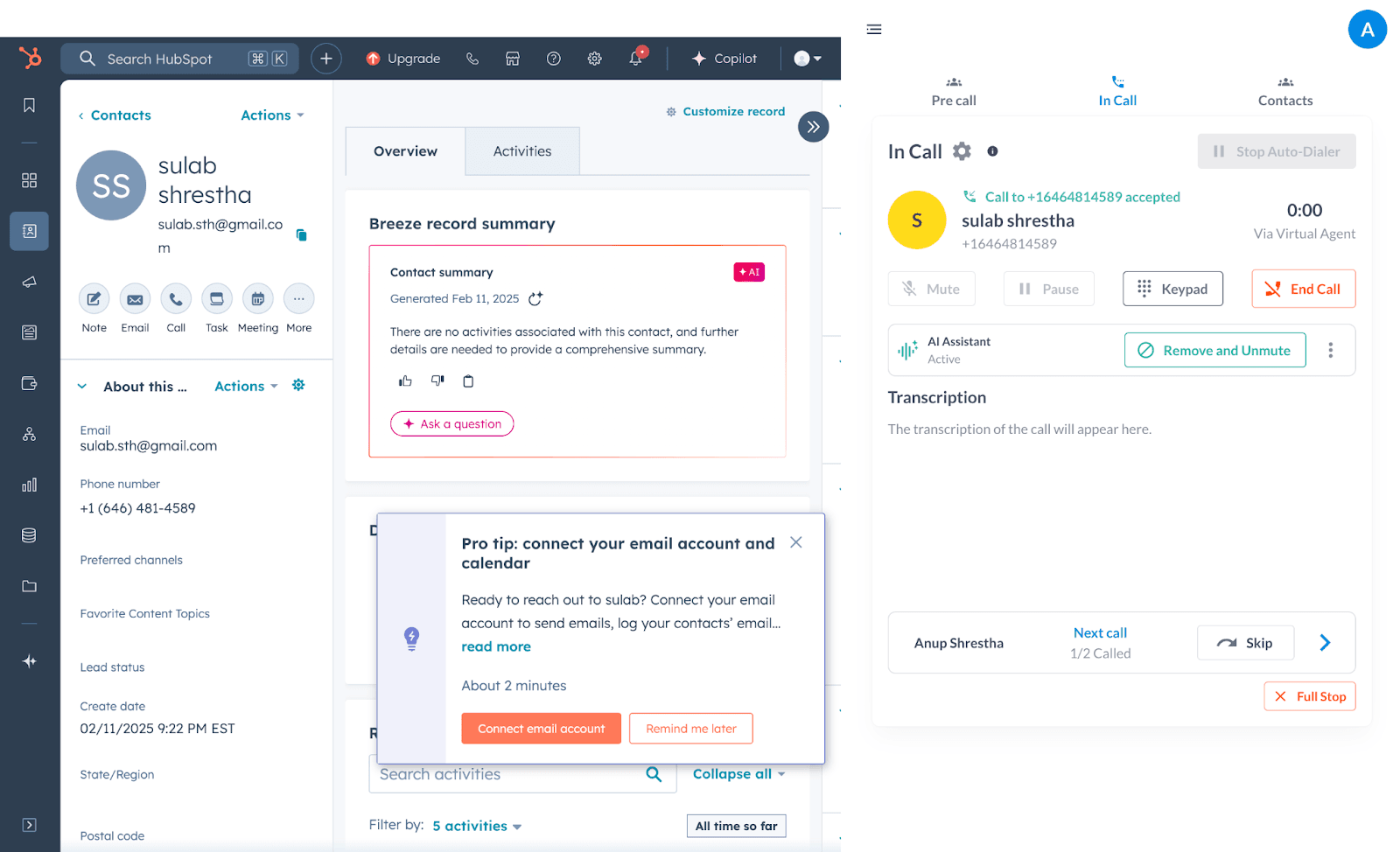
Go to In Call and press Start Auto Dialler. TwinsAI calls every contact in your All Customers list one by one with your trained AI, and you can jump onto any call.
End or stop calling
Press End Call to end the current call, or Stop Auto-Dialer to stop the dialer entirely.
Alternative: import from the Contacts page
Open the Contacts page
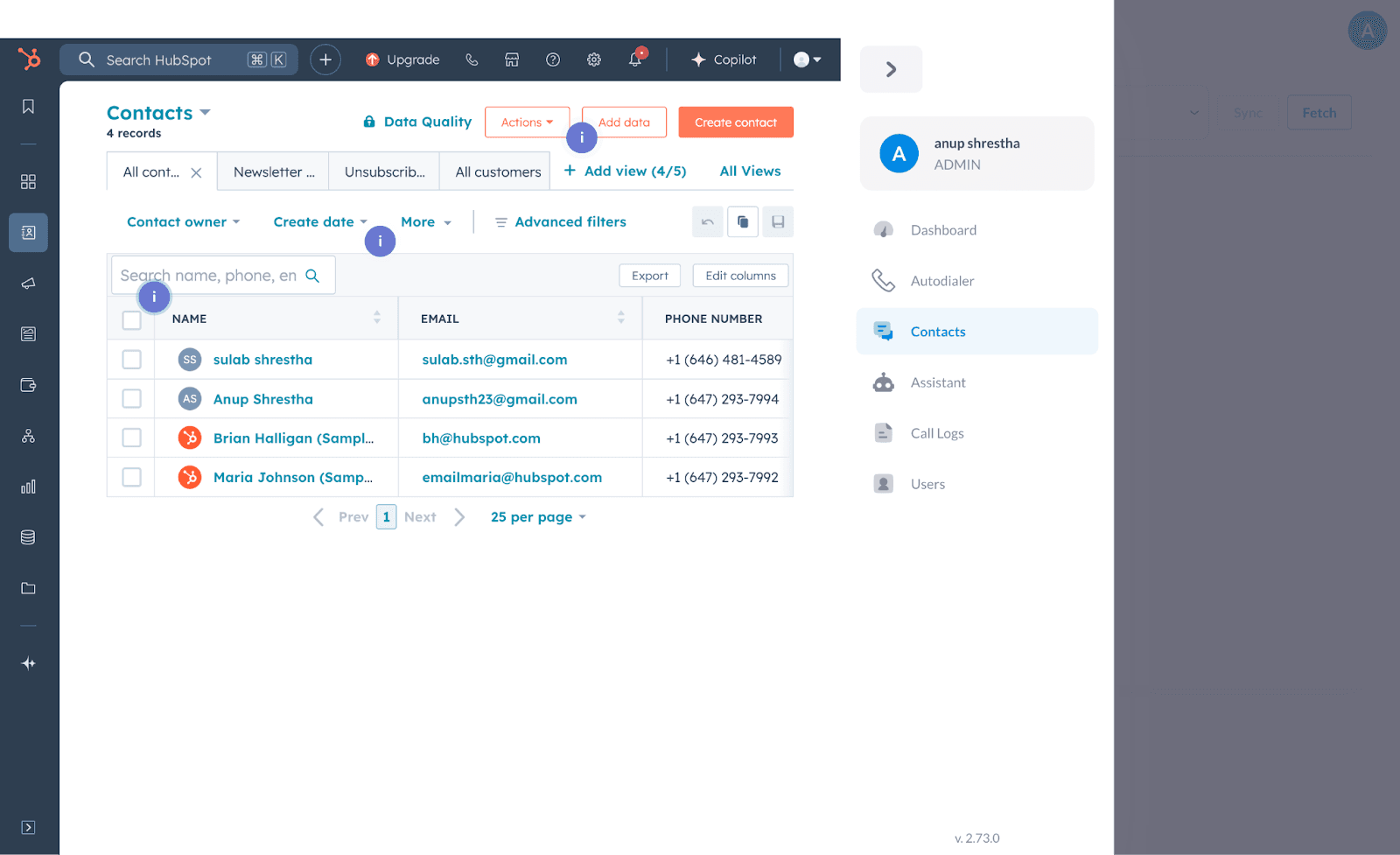
Prefer the Contacts page? Open Contacts from the hamburger menu.
Search for the HubSpot list
In the search bar, click Contact List and look for HubSpot then All Customers.
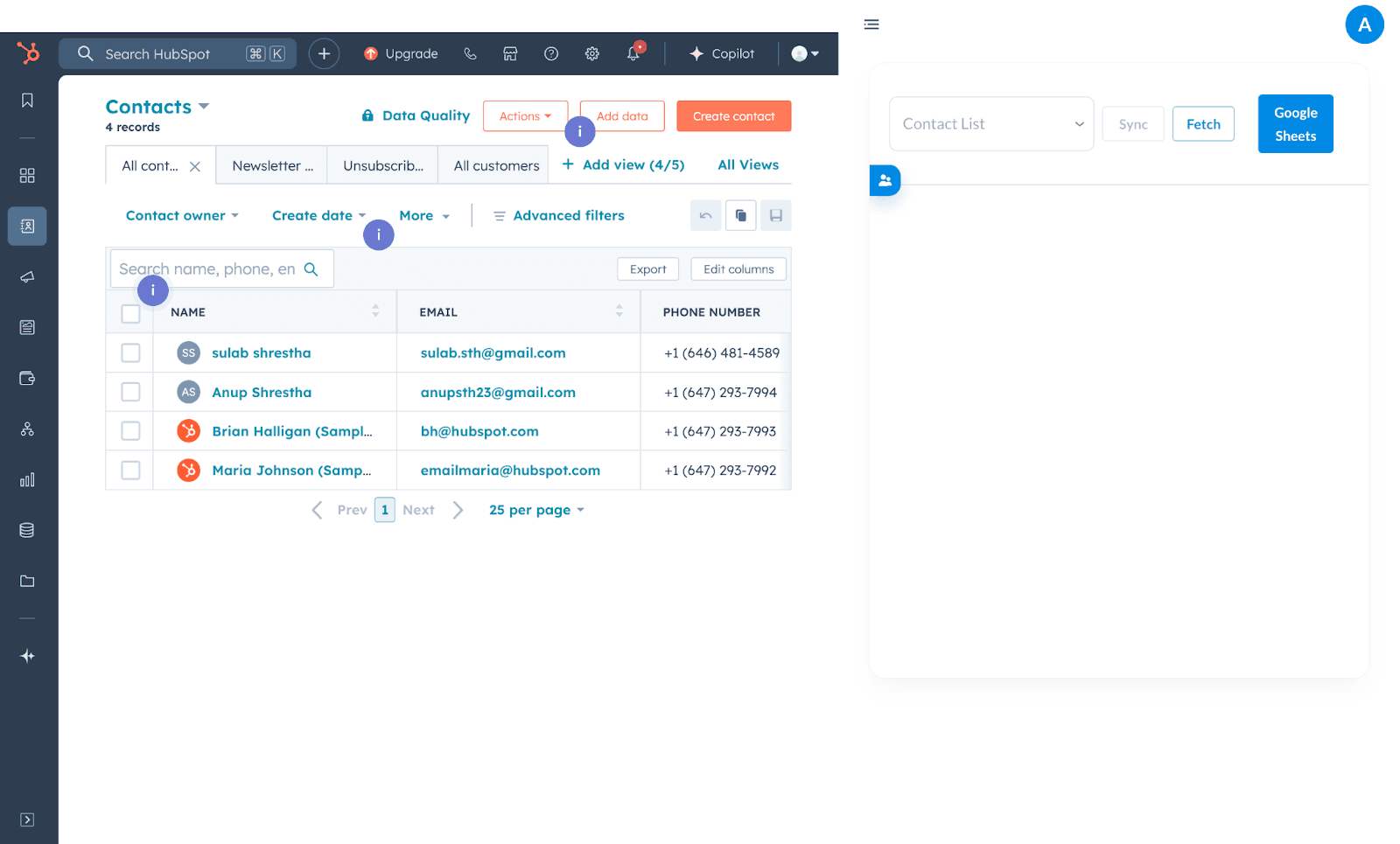
Sync and view imported contacts
Click Sync, then click the small blue people icon to view the contacts imported from HubSpot.
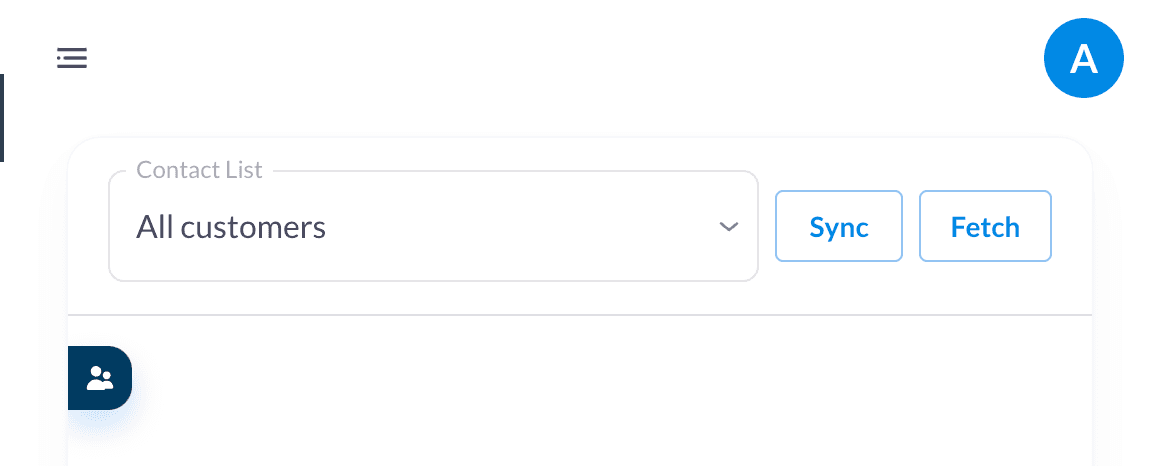
Best on the desktop app
TwinsAI runs best as a native desktop app. Download it to get the smoothest calling experience.
How to disconnect HubSpot
- 01Log in to TwinsAI.
- 02Go to Profile, then Settings.
- 03Open the Integrations tab.
- 04Click Disconnect.
- 05Confirm with Yes, I am sure.
Heads up
If you disconnect your HubSpot account from TwinsAI, your leads and account data from HubSpot will no longer sync to Contacts and the Auto-Dialer, and vice versa. Existing data will not remain in TwinsAI.
Frequently asked questions.
What is TwinsAI, and how does it integrate with HubSpot?+
TwinsAI is an AI-powered voice assistant for automated outbound calling. It integrates with HubSpot by syncing contact data, automating follow-ups, and logging call interactions directly in your CRM.
How do I connect TwinsAI to my HubSpot account?+
Authenticate your HubSpot account in the TwinsAI settings using your existing HubSpot user credentials, or install TwinsAI from the HubSpot App Marketplace. Either path grants the same access.
What HubSpot data does TwinsAI use?+
TwinsAI can access HubSpot contacts, leads, deals, and activity data. It uses this data to personalize conversations and ensure call activity is recorded in the CRM.
Can TwinsAI automatically update HubSpot records?+
Yes. TwinsAI updates HubSpot records in real time by logging call outcomes, updating lead statuses, and adding follow-up tasks based on AI-driven interactions.
How does TwinsAI handle call recordings and transcripts in HubSpot?+
Call recordings and AI-generated transcripts can be automatically attached to contact or deal records in HubSpot, giving you a complete call history and call dispositions.
Can I customize the AI responses and call scripts?+
Yes. TwinsAI lets you configure AI scripts, call flows, and response logic to match your sales and outreach strategy.
How do I ensure compliance with call regulations when using TwinsAI?+
TwinsAI follows compliance best practices, including DNC (Do Not Call) list checking and call consent requirements.
What analytics and reporting does TwinsAI provide in HubSpot?+
TwinsAI provides detailed call analytics, including call success rates, sentiment analysis, and conversion tracking, all accessible within HubSpot reports.
Is there a way to test TwinsAI before making live calls?+
Yes. TwinsAI offers a testing mode where you can simulate calls with our AI sample agents, review responses, and adjust configurations before going live.
How do I troubleshoot issues with the TwinsAI and HubSpot integration?+
Check your API connection permission and the user account connected to TwinsAI, and review the TwinsAI logs for errors. If needed, contact TwinsAI support for assistance.
What happens if I disconnect HubSpot from TwinsAI?+
If you disconnect your HubSpot account, your leads and account data no longer sync to Contacts and the Auto-Dialer (and vice versa), and existing data will not remain in TwinsAI.
Pick up the phone. We'll handle it from here.
Book a 15-minute call with our team. We'll give you a demo with a Twin custom trained on your company.